

Mail2ActionMail2Action

Email Thread Visualizer for Gmail and Outlook

To visualize an email thread, open it in Gmail or Outlook Web and click Mail2Action. The Chrome extension turns the thread into a timeline of who said what and when, a reply tree of who answered whom, or a decision flowchart — right next to your inbox, with AI included and nothing to copy or paste.

Updated

Add to Chrome — It's Free

How do I see an email thread as a timeline?

The Thread Timeline draws the conversation as a sequence diagram: one column per person, one arrow per message, dated and summarized in a few words. People from the same company are grouped together, and the moments where the thread reached a conclusion are highlighted as notes. You see in seconds where opinions changed and who moved the discussion forward.
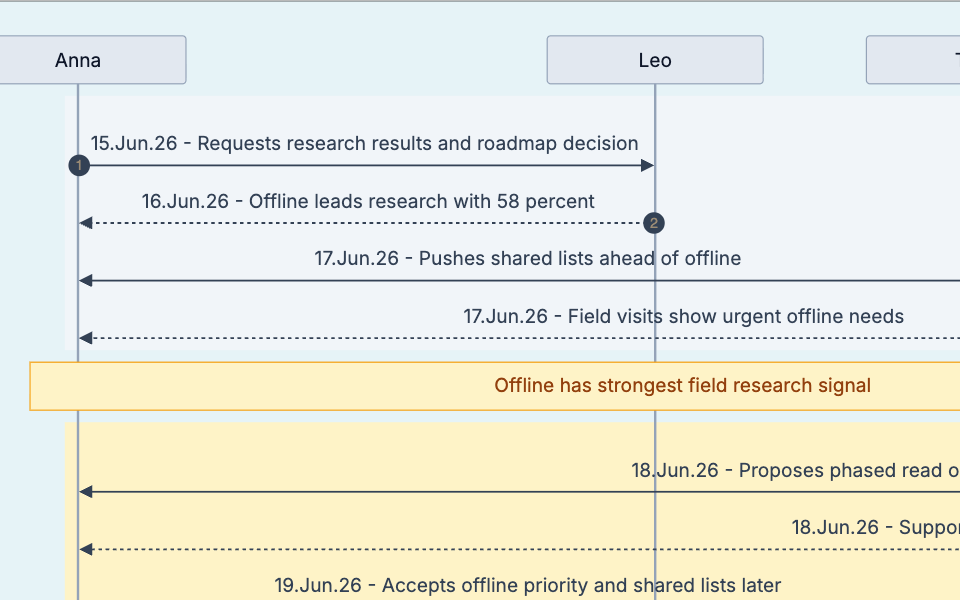
Thread timeline of a product discussion: Anna requests research results, Leo reports offline leads with 58 percent, Tom pushes shared lists, field visits show offline needs
Thread Timeline (excerpt): who said what, in order, with key conclusions highlighted.

How do I see who replied to whom?

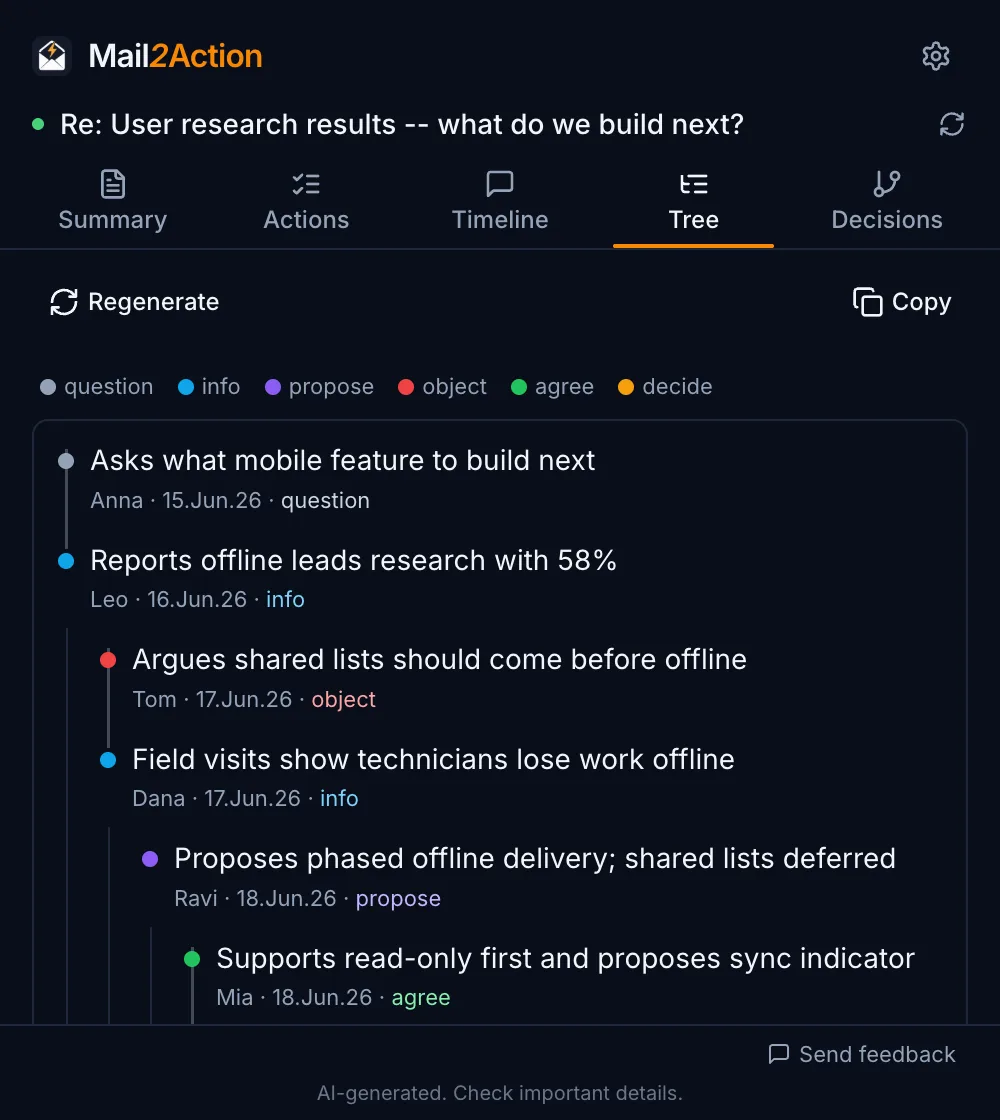
Long threads branch: someone answers an older message, a side discussion starts, two people argue past each other. The Reply Tree indents every reply under the message it answers, so you see each branch. Each reply gets a stance label — question, info, propose, object, agree, or decide — so you can find objections and decisions without reading every message.

Mail2Action Reply Tree in the side panel: Anna asks what to build next, Leo reports research, Tom objects, Dana shares field visits, Ravi proposes a phased plan, Mia agrees
Reply Tree: branches and stances of every reply.

Can I turn an email thread into a flowchart?

Yes. The Decision Flowchart extracts what was decided, who owns each step, the deadlines, and the if/else paths (“if the beta goes well, start Phase 2; if we see sync problems, revisit the design”). It is the fastest way to brief someone who was not on the thread.
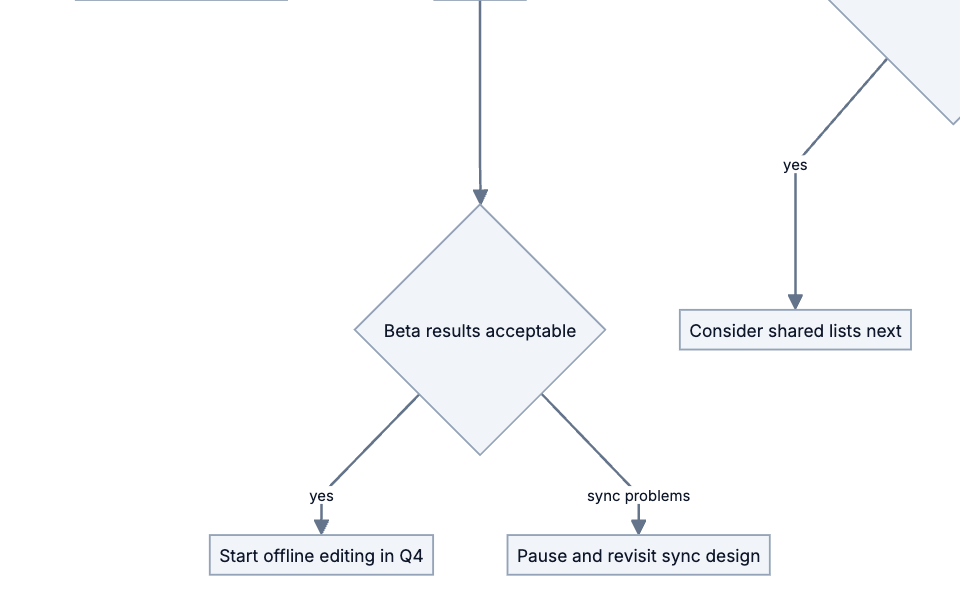
Decision flowchart: if beta results are acceptable, start offline editing in Q4; on sync problems, revisit the sync design
Decision Flowchart (excerpt): outcomes, owners and conditions.

How does it work?

  1. Install Mail2Action from the Chrome Web Store (free).
  2. Open any email thread in Gmail or Outlook Web.
  3. Click the Mail2Action button and pick a view: Summary, Actions, Timeline, Tree, or Decisions.

AI is included — 30 runs a month on the free plan, no API key needed. If you prefer, add your own key for OpenAI, Google Gemini, Anthropic Claude, or xAI Grok for unlimited runs. Need the text version instead? See how to summarize an email thread and pull out action items.

How is this different from other email visualization tools?

Most thread-visualization tools are built for legal e-discovery or require you to paste the email into a separate app. Mail2Action works inside the inbox you already use, on a single thread, in one click — and combines visuals with a written summary and a list of action items with owners and due dates.

Frequently asked questions

Short answers to common questions.

Can I make a diagram of an email thread?

Yes. Open the thread in Gmail or Outlook Web, click Mail2Action, and choose Timeline, Tree, or Decisions. The diagram is generated from the thread text in a few seconds — no copy-pasting into another tool.

How do I see who replied to whom in a long email thread?

Use the Reply Tree view. It indents each reply under the message it answers, so branches are visible at a glance, and labels every reply as question, info, proposal, objection, agreement, or decision.

Does it work with Outlook?

Yes. Mail2Action works in Outlook on the web (outlook.office.com, outlook.office365.com, outlook.live.com) and in Gmail. The desktop Outlook app is not supported, because Mail2Action is a Chrome extension.

Can I export the diagram?

Timelines and flowcharts export as SVG or PNG with Pro, or with a one-time Export Unlock if you use your own API key. Every view can be copied to the clipboard on the free plan.

Is the email content stored?

No. With the included Mail2Action AI, the thread is processed only to create the diagram and never stored or logged. With your own API key, the text goes straight from your browser to your AI provider.

Add to Chrome — It's Free

Free plan, no credit card. Works in Gmail and Outlook Web.